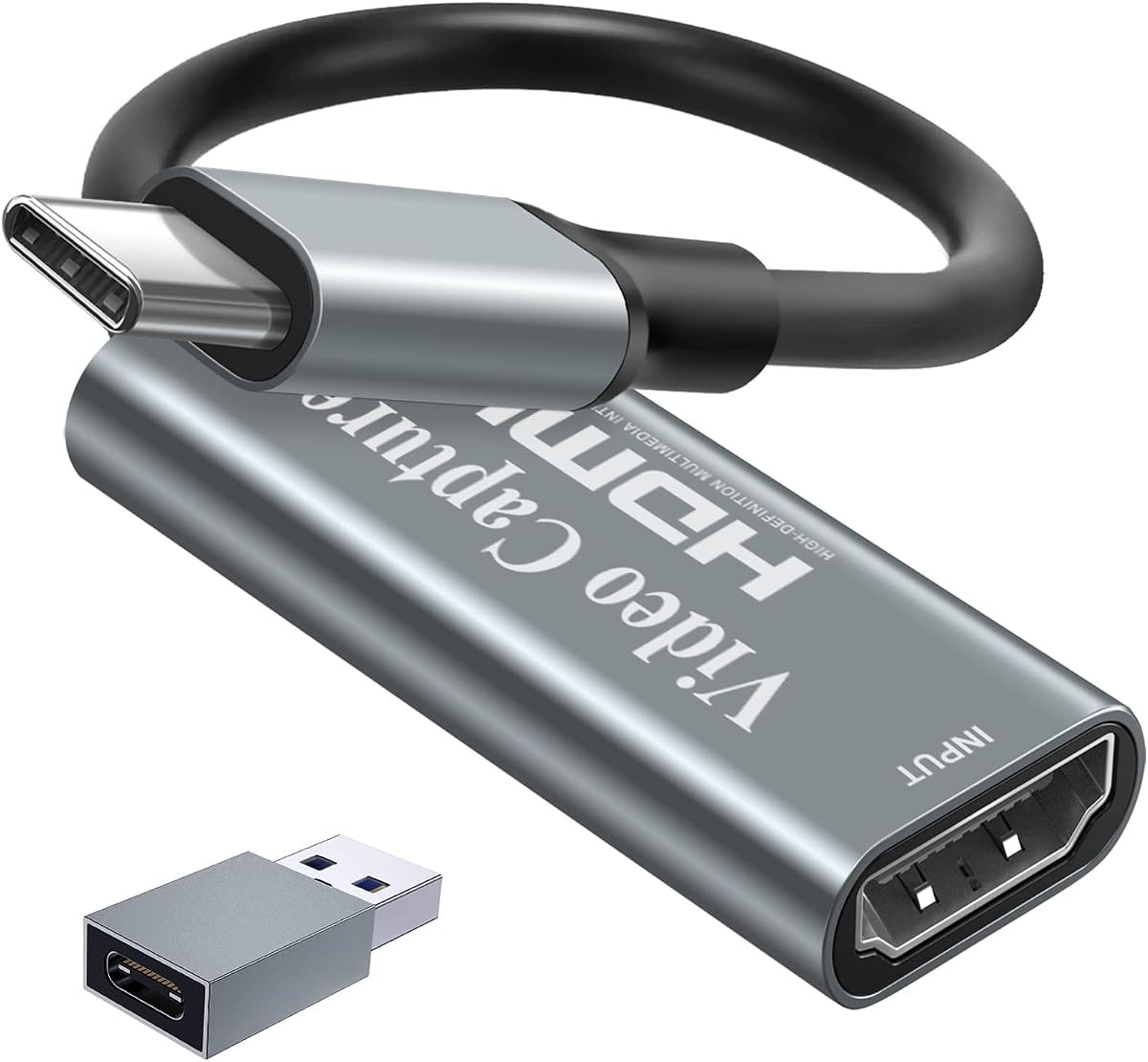
Papeaso Video Capture Card
4.2Editor score
Affordable price point
Linux compatibility
1080P 60FPS output
This guide compares the top ten capture cards for Linux users, evaluating compatibility, performance, and value for streaming and recording on open source
Finding a reliable capture card for Linux can be challenging due to driver limitations and compatibility issues. This guide highlights ten proven devices that work seamlessly with open-source software like OBS and VLC for smooth streaming.
We evaluated each model based on Linux compatibility, video quality, latency, and build quality. Our analysis focuses on devices that offer plug-and-play functionality without requiring proprietary drivers or complex configuration steps on your system.
Each pick includes detailed specifications, pros, cons, and usage scenarios to help you choose the right device. Prices and availability may change, so verify current details before purchasing to ensure you get the best deal available.
4.2Editor score

4.4Editor score

4.2Editor score
The following table provides a side-by-side comparison of all ten capture cards evaluated in this guide. Use it to quickly identify key specifications and compatibility features for your Linux setup.

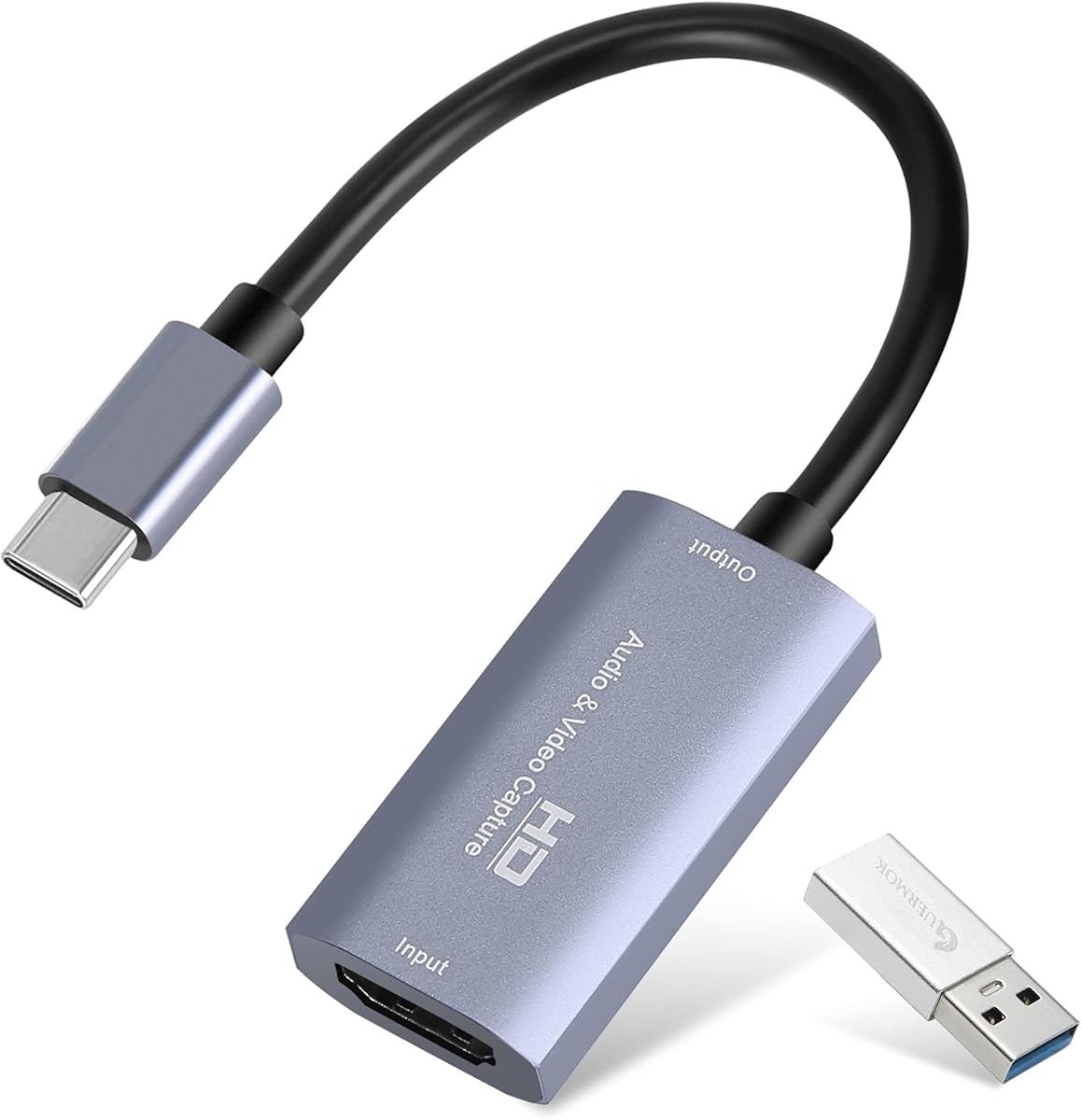

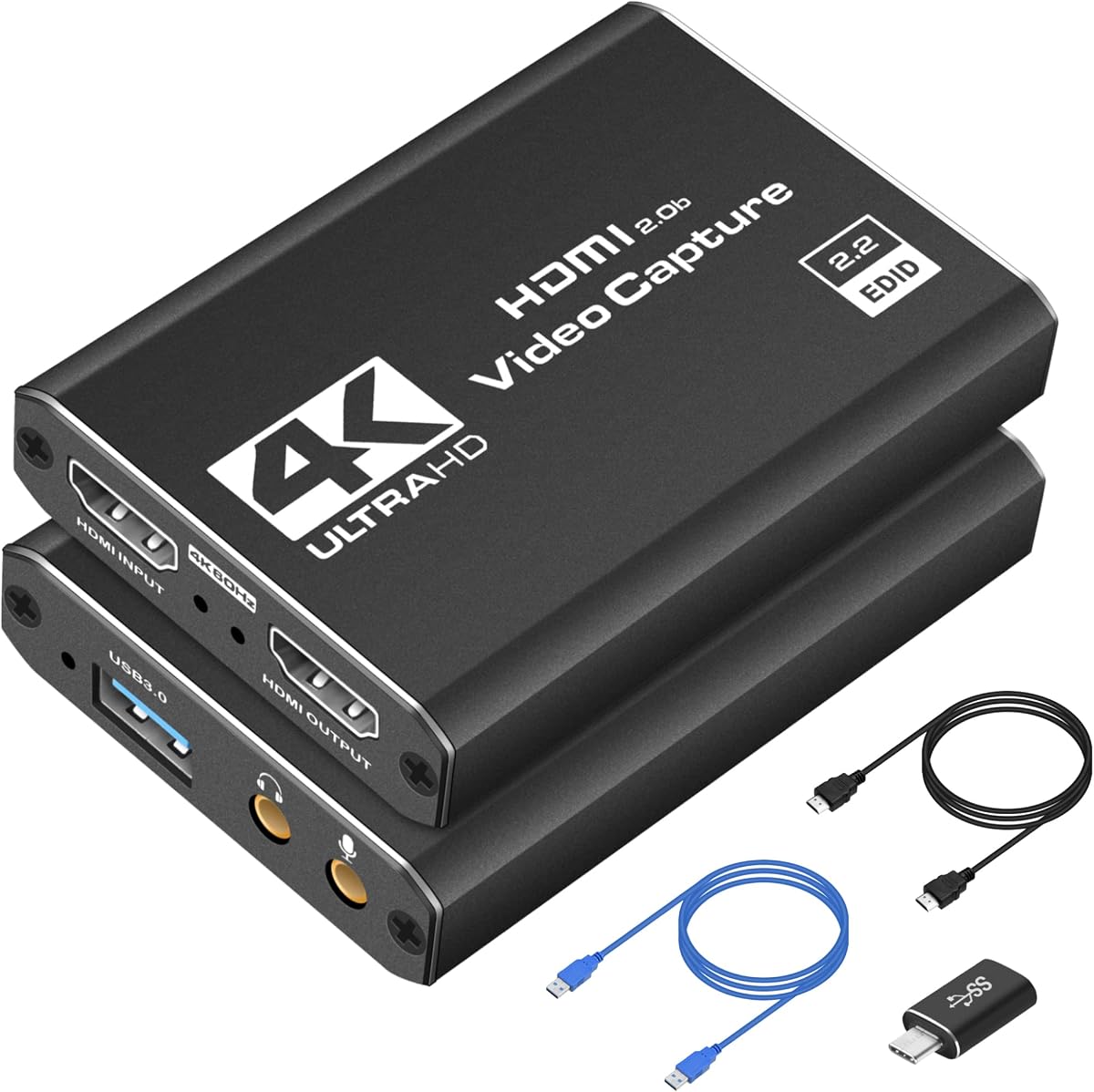


This acer capture card offers a straightforward solution for Linux users needing basic 1080P 60Hz recording. With a 4.4 rating, it balances cost and functionality for entry-level streaming.
We may earn a commission when you buy through this link, at no additional cost to you.
Its USB 3.0 interface ensures smooth data transfer while YUY2 technology delivers richer colors. The included mic-in port allows easy commentary without extra adapters.
The device lacks advanced features like high-frame-rate pass-through, which may limit power users. However, its simplicity and compatibility make it accessible for beginners.
Ideal for students or casual streamers, this card works reliably with OBS and other Linux apps. It provides essential capture capabilities without demanding high-end hardware.
No drivers are required; simply plug the device into a USB 3.0 port and open your preferred capture software to begin recording.
The built-in 3.5mm mic-in port lets you connect headsets directly, ensuring synchronized audio and video during live sessions.
We may earn a commission when you buy through this link, at no additional cost to you.
The UGREEN capture card earns top honors for its robust Linux compatibility and versatile connectivity. Its 4K input support ensures high-quality source capture while maintaining 1080P 60Hz output.
We may earn a commission when you buy through this link, at no additional cost to you.
Featuring both USB-A and USB-C ports, it adapts to modern laptops and desktops. The aluminum casing aids heat dissipation during extended use, ensuring stable performance.
While 4K output isn't available, the 2K 30Hz option provides a good balance. Note that HDCP must be disabled on consoles like PS5 for successful capture.
This model suits professionals and hobbyists needing reliable Linux integration. Its flexibility and build quality make it the recommended choice for most users.
With USB-A and USB-C ports, this card connects easily to various devices without needing additional adapters or hub accessories.
The aluminum casing not only looks professional but also dissipates heat effectively, preventing overheating during long recording sessions.
We may earn a commission when you buy through this link, at no additional cost to you.
The Guermok capture card excels in portability, making it ideal for on-the-go creators. Its USB-C interface aligns with modern laptops and minimal setups.
We may earn a commission when you buy through this link, at no additional cost to you.
Built with aluminum alloy for heat dissipation, it maintains low latency for smooth live streaming. The 1080P 60FPS output meets standard streaming requirements effectively.
Note that an adapter is included for USB-A compatibility, which adds slight bulk. Also, it supports one-way transmission, limiting certain use cases.
Best for mobile streamers and educators, this card delivers reliable performance in a tiny package. It supports Linux seamlessly for hassle-free operation.
Its small footprint fits easily in any bag, allowing creators to stream from LAN parties or remote locations without bulk.
The device ensures minimal lag between input and output, crucial for real-time commentary and interactive streaming on Linux.
We may earn a commission when you buy through this link, at no additional cost to you.
This Newhope capture card is tailored for gamers needing reliable 1080P 60FPS streaming on Linux. The HDMI loop-out allows playing without interruption while capturing.
We may earn a commission when you buy through this link, at no additional cost to you.
Its plug-and-play design avoids driver headaches on Linux systems. The included mic-in supports commentary, enhancing interactivity during streams.
While it lacks high-end audio features, it meets core streaming needs efficiently. Users may find limitations with multi-channel audio setups.
Ideal for budget-conscious gamers, this card offers solid performance for Twitch or YouTube. It remains compatible with Linux OBS setups seamlessly.
The HDMI loop-out ensures your monitor displays gameplay instantly, so you never miss a moment while streaming to your audience.
No installation is needed; just connect the device and launch your capture software to begin recording immediately on Linux.
We may earn a commission when you buy through this link, at no additional cost to you.
This capture card is designed for content creators seeking high-quality footage without complex setups. Its 4K HDMI readiness ensures sharp video capture for professional outputs.
We may earn a commission when you buy through this link, at no additional cost to you.
The plug-and-play interface simplifies workflows on Linux, making it accessible for beginners. Low-latency performance supports real-time monitoring during live sessions.
Note that some configurations may require external power for stability. Also, it lacks advanced audio mixing capabilities found in premium models.
Best for vloggers and streamers, this card delivers consistent results across Linux platforms. It balances quality and ease of use effectively.
The 4K-ready input ensures your source footage is captured at its highest fidelity, ideal for detailed YouTube tutorials.
Its plug-and-play nature reduces setup time, allowing creators to focus on content rather than technical configuration on Linux.
We may earn a commission when you buy through this link, at no additional cost to you.
This UGREEN model stands out with its 5 Gbps transfer speed, ensuring smooth data flow for Linux editing workflows. It supports 2K output for detailed post-production.
We may earn a commission when you buy through this link, at no additional cost to you.
With both USB-A and USB-C interfaces, it adapts to various systems. The 4.5 rating reflects its reliability and performance consistency across users.
While it limits output to 2K, this suffices for most editing needs. Remember to disable HDCP on consoles for successful signal capture.
Ideal for video editors and streamers, this card delivers high-speed performance on Linux. It balances speed and quality for demanding tasks.
The 5 Gbps speed ensures large video files transfer quickly, reducing wait times during recording and editing on Linux.
USB-A and USB-C ports allow seamless integration with both older desktops and newer laptops without extra adapters.
We may earn a commission when you buy through this link, at no additional cost to you.
This capture card offers robust audio monitoring features for Linux users. With built-in headphone output, you can listen to audio while streaming.
We may earn a commission when you buy through this link, at no additional cost to you.
It achieves a 4.5 rating for reliability and ease of use. Plug-and-play functionality ensures quick setup without driver installations.
The device lacks advanced audio formats, limiting professional setups. However, it suits standard streaming needs efficiently for most users.
Best for podcasters and streamers needing audio monitoring, this card performs well on Linux. It ensures synchronized audio for quality content.
The headphone jack allows you to hear audio as it is captured, ensuring synchronization during live streams or recordings.
Linux systems recognize the device instantly, eliminating the need for complex driver configurations before you can start.
We may earn a commission when you buy through this link, at no additional cost to you.
This AVerMedia model offers advanced features like HDR passthrough for enhanced visual quality. It supports flexible formats like NV12 and YUY2 for varied workflows.
We may earn a commission when you buy through this link, at no additional cost to you.
The ultra-low latency ensures smooth gameplay capture on Linux systems. It works with OBS and other apps for broad software compatibility.
Despite its features, it holds a 4.0 rating, suggesting potential issues with driver consistency. The price point is higher than entry-level alternatives.
Ideal for users needing HDR, this card provides solid performance on Linux. It balances features and cost for semi-professional setups.
The 4K60 HDR passthrough ensures your streams look vibrant and detailed, matching the source device's output capabilities.
Multiple video formats allow you to choose the best option for your editing software or streaming platform requirements.
We may earn a commission when you buy through this link, at no additional cost to you.
This Papeaso capture card provides an affordable entry into Linux-compatible streaming. It offers 1080P 60FPS capture at a budget-friendly price point.
We may earn a commission when you buy through this link, at no additional cost to you.
The USB-C interface ensures modern connectivity, and its no-delay performance suits casual streaming. Linux recognition is smooth without driver hassles.
Build quality is basic compared to premium models, which may affect long-term durability. However, it delivers core functionality effectively for the price.
Best for beginners on a budget, this card handles standard recording tasks well on Linux. It proves quality doesn't require high costs.
Its low price makes high-quality streaming accessible to students and hobbyists without straining their budget significantly.
Despite the low cost, the device maintains smooth video transfer without freezing, ensuring reliable output for live content.
We may earn a commission when you buy through this link, at no additional cost to you.
This AVerMedia model represents the top tier of capture cards with 4K60 HDR passthrough and 5.1 audio support. It delivers professional-grade output for demanding users.
We may earn a commission when you buy through this link, at no additional cost to you.
Its VRR passthrough maintains smooth gameplay on high-refresh displays. Linux compatibility ensures it works seamlessly with OBS and similar open-source tools.
The high price may limit accessibility, and setup requires careful configuration for full feature utilization. However, the quality justifies the investment.
Ideal for professional streamers and editors, this card sets a high standard on Linux. It provides the best performance for premium workflows.
The 5.1-channel audio capture ensures immersive sound quality for gaming streams and video production on Linux systems.
With VRR and HDR passthrough, the card handles high-end displays effortlessly, preserving visual fidelity during capture.
We may earn a commission when you buy through this link, at no additional cost to you.
Selecting the right capture card requires evaluating several technical and practical factors to ensure compatibility with your Linux system and streaming goals.
Ensure the capture card is recognized by your Linux distribution without requiring proprietary drivers. Most devices using UVC protocols work seamlessly with OBS and VLC.
Check user reviews specifically mentioning Linux to confirm smooth recognition and stable performance over time.
Choose a card that supports at least 1080P 60FPS output for smooth streaming. Some models offer 4K input but may limit output to 2K or 1080P.
Prioritize models matching your source device's capabilities to avoid bottlenecks during capture or encoding.
Verify the card has HDMI inputs matching your source device, such as consoles or cameras. USB 3.0 or USB-C ensures sufficient bandwidth for high-resolution video.
USB-C offers more flexibility for modern laptops, while USB-A suits traditional desktops and may provide better stability in some cases.
Low latency is crucial for real-time gaming and commentary. Cards with HDMI loop-out allow monitoring without delay while capturing simultaneously.
If you stream live, ensure the latency remains imperceptible to maintain viewer engagement and interaction during broadcasts.
Check for mic-in ports if you plan to add commentary during streams. Some models support multi-channel audio, beneficial for professional setups.
Standard stereo capture suffices for most users, but advanced audio features add value for podcasters and high-quality producers.
Aluminum casings help dissipate heat during extended use, preventing overheating and performance drops. This is important for long streaming sessions.
Investing in a durable build ensures longevity and consistent performance, reducing the need for replacements over time.
Balance features against your budget. Entry-level models offer basic functionality, while premium ones include advanced features like HDR and high-frame-rate support.
Determine which features are essential for your needs to avoid overspending on capabilities you may not use regularly.
Verify compatibility with Linux streaming software like OBS, XSplit, or VLC. Most modern cards work out of the box, but some may require configuration.
Check forums and documentation for any known Linux-specific issues before purchasing to prevent setup complications.
First, connect the capture card to your Linux computer using a USB 3.0 or USB-C port. Ensure the HDMI source is connected to the card's input, and monitor the output to a display if using loop-out.
Next, open your preferred capture software like OBS Studio. Select the capture card as the video source under the Devices settings to begin monitoring the incoming signal.
To maintain longevity, avoid blocking ventilation slots on the device during use. Keep the card clean from dust and store it in a dry place when not in use.
Most modern capture cards work on Linux without additional drivers using UVC protocols. Simply plug the device in, and it should appear as a video source in your software.
Yes, but you must disable HDCP in the console settings. Otherwise, the capture card may display a blank screen or an HDCP error message on Linux.
Check your USB connections and ensure the port provides sufficient power. You may also need to restart your capture software after connecting the device.
Most cards support 1080P 60FPS streaming. Some offer 2K or 4K inputs, but output may be limited based on the specific model and software settings.
Yes, capture cards can connect cameras or external video sources for high-quality meetings. Ensure your conferencing app supports USB video devices.
Adjust audio delay settings in your capture software like OBS. Using a device with low latency also helps minimize synchronization problems during streaming.
USB-C offers versatility for modern laptops, but performance is similar if both support USB 3.0. Choose based on your computer's available ports for convenience.
We highlighted ten capture cards that excel in Linux compatibility and performance. From budget-friendly options to premium models, each serves different streaming needs and budgets.
Prioritize factors like latency, resolution support, and audio capabilities based on your specific use case. A well-matched device ensures smooth, reliable capture.
Always verify current prices and availability before purchasing. Our guide remains current, but deals change frequently to help you secure the best value.