This guide compares the top bootable Windows 11 USB drives for installation, recovery, and repair across various hardware configurations and user needs.
As an Amazon Associate we earn from qualifying purchases. We may earn a commission when you buy through links on this page, at no additional cost to you. Read our affiliate disclosure.As an Amazon Associate we earn from qualifying purchases.Purchases through our links may earn us a commission, at no extra cost to you. Read our affiliate disclosure.
Finding the right bootable Windows 11 USB drive can save you hours of troubleshooting when your system crashes or needs an update. These tools allow you to reinstall the operating system, recover lost data, or fix boot errors without needing advanced technical skills or access to another working computer.
We evaluated ten highly rated USB drives based on compatibility with modern UEFI systems, inclusion of recovery tools, and ease of use for beginners. Our comparison focuses on drives that support Windows 11 and 10 installations while offering additional features like password resets and driver support for network connectivity.
Each pick in this list highlights specific strengths such as TPM bypass capabilities, included software suites, or robust customer support options. Please note that pricing and availability may change frequently, so always verify current details before making your final purchase decision online.
Top 3 Picks for Best Bootable Windows 11 USB Drive
Best Budget
32GB – Bootable Windows 10&11, USB Driver 3.2 Gen for Install/Recovery Windows, No TPM Required, Included Network Drives (WiFi & LAN), Supported UEFI and Legacy, Compatible All Brands
64GB – Bootable USB Drive 3.2 for Windows 11/10 / 8.1/7, Install/Recovery, No TPM Required, Included Network Drives (WiFi & LAN),Supported UEFI and Legacy, Data Recovery, Repair Tool
Top 10 Best Bootable Windows 11 USB Drive in 2026 Compared
This side-by-side comparison outlines the key specifications and capabilities of each selected USB drive to help you choose the right tool for your specific repair or installation needs.
This 64GB bootable USB drive is currently rated as a top choice for Windows 11 and 10 installations, offering a robust toolkit for repair and recovery without requiring TPM hardware support. Users appreciate its versatility in handling various Windows versions while providing essential network drivers that many standard installers lack.
Pros
Comprehensive tool suite included
No TPM requirement bypass
Network drivers pre-installed
Works on Legacy and UEFI
Antivirus scanned for safety
Cons
Requires Secure Boot disable
Existing Windows cannot be kept
We may earn a commission when you buy through this link, at no additional cost to you.
The standout quality here is the inclusion of a full maintenance suite that allows you to partition drives, recover data, and access network connections immediately after booting. This makes it significantly easier to restore a broken system to a functional state without needing additional downloads or technical expertise.
One honest trade-off is the requirement to disable Secure Boot in your BIOS settings, which might confuse beginners unfamiliar with system firmware. However, this is a common limitation for many third-party tools and does not permanently alter your system configuration if you re-enable it afterward.
Anyone dealing with a computer that crashes frequently or needs a clean OS reinstall should consider this drive. The combination of installation media and recovery tools in one package makes it a reliable emergency kit for home users and small office technicians.
Versatile Windows Support
Compatible with Windows 7 through 11 including both Pro and Home editions in 64-bit architecture.
Integrated Network Access
Includes WiFi and LAN drivers so you can connect to the internet immediately after installation.
This product focuses strictly on the core task of reinstalling the Windows operating system without any extra software bloat. It is designed for users who know their hardware is functional but need a clean slate for their OS due to corruption or performance issues.
Pros
No TPM requirement for setup
Compatible with Legacy BIOS
Simple recovery focused design
Handmade quality testing
Lower price point option
Cons
Limited to OS reinstall only
No advanced recovery tools included
We may earn a commission when you buy through this link, at no additional cost to you.
The lack of TPM requirement makes it accessible for older hardware that cannot meet the standard Windows 11 specs. This simplicity ensures faster boot times and fewer compatibility conflicts during the initial setup phase compared to more complex tool suites.
Users should be aware that this tool cannot fix failing hardware components like bad RAM or broken motherboards. It is specifically for software recovery so you must verify your computer can still enter the BIOS before purchasing to avoid frustration.
If you are comfortable with standard system reinstalls and just need a reliable USB stick to do the job, this is a cost effective option. It provides the essentials without the complexity of data recovery features you might not need.
Straightforward Setup
Designed for users who primarily need to reinstall Windows without additional utility distractions.
Legacy System Friendly
Supports both modern UEFI and older Legacy BIOS boot methods for wider compatibility.
For budget conscious users who still need essential recovery features this 32GB drive offers excellent value. It includes network drivers and backup tools that are often missing from standard Windows installation media making it very practical for home use.
Pros
Affordable price point
Includes network connectivity drivers
Hard drive backup capability
Supports Windows 10 and 11
Compatible with all PC brands
Cons
32GB storage may be tight
Secure Boot must be disabled
We may earn a commission when you buy through this link, at no additional cost to you.
The ability to back up your hard drive before reinstalling provides a safety net for important files. This feature alone adds significant value since data loss is a common fear when performing system repairs or OS migrations.
While the storage capacity is smaller than the 64GB options it remains sufficient for the OS and essential utilities. You may need to manage space carefully but for most standard repairs this size is adequate.
This drive is best suited for home users who want a balance of cost and functionality. If you need to fix a boot error without spending too much this option delivers the necessary tools effectively.
Data Safety Focus
Allows you to access hard drives and backup data to keep your files safe during repair.
Driver Compatibility
Tutorials and drivers are included to help connect to the internet after Windows is installed.
This USB drive stands out for its password reset capabilities which are invaluable if you have locked yourself out of your system. The inclusion of a WinPE utility suite further enhances its diagnostic power for advanced users who need to troubleshoot beyond a simple reinstall.
Pros
Includes password reset functionality
WinPE suite for diagnostics
Compatible with new and old PCs
Supports Windows 7 to 11
Video tutorial included
Cons
Secure Boot may need disabling
Manual installation required for some tools
We may earn a commission when you buy through this link, at no additional cost to you.
The hardware testing features allow you to check RAM or hard drive health before attempting a software repair. This proactive approach helps you determine if your computer needs physical repairs or just a fresh OS installation.
Users with very old computers will appreciate the compatibility with Legacy BIOS systems alongside modern UEFI setups. However you may need to follow the video tutorials carefully to ensure your BIOS settings are adjusted correctly for booting.
If you frequently deal with locked accounts or need detailed system diagnostics this tool offers more depth than basic installers. It is a solid choice for IT hobbyists who want a comprehensive toolkit in one drive.
Password Recovery Support
Contains tools to reset Windows passwords so you can regain access to your locked system.
Diagnostic Capabilities
Includes hardware testing utilities to check for potential physical component failures.
This unique tool distinguishes itself by working with Secure Boot enabled meaning you do not have to fiddle with BIOS settings to get it to run. This makes it significantly easier for beginners who might be afraid of changing system firmware configurations.
Pros
Works with Secure Boot enabled
Downloads genuine official Windows
Real US based support
No BIOS changes needed
Latest official ISO files
Cons
No legacy BIOS support
Requires specific UEFI hardware
We may earn a commission when you buy through this link, at no additional cost to you.
It downloads genuine Windows files directly from Microsoft ensuring you are installing an official and secure version of the OS. This eliminates the risk of using outdated or pirated copies that can cause security vulnerabilities on your machine.
The limitation is that it strictly requires UEFI BIOS which covers most PCs from 2013 onwards but excludes very old systems. If your computer is older or uses a legacy boot mode this specific drive will not be compatible.
For modern users who prioritize security and ease of use this is an excellent solution. The availability of real human support adds another layer of confidence for those who need guidance during the repair process.
Secure Boot Support
Unlike other recovery USBs this tool works with Secure Boot enabled without requiring BIOS changes.
Official File Source
Always installs the latest official Windows by downloading genuine files directly from Microsoft.
This drive focuses on providing clear guidance through detailed instructions for system recovery and repair procedures. It aims to assist users who might feel overwhelmed by technical processes by offering step by step documentation included in the package.
Pros
Includes detailed recovery instructions
Supports system restore features
Compatible with Windows 11 Home and Pro
Boot setup guides included
UEFI compliant design
Cons
Lower rating than competitors
Limited recovery feature variety
We may earn a commission when you buy through this link, at no additional cost to you.
The system restore options allow you to revert your computer to a previous state if a recent update caused issues. This is a safer first step compared to a full reinstall if your goal is to fix specific system errors.
While it has a slightly lower rating it remains a solid option for specific Windows 11 Home or Pro editions. The focus on compatibility with 64-bit systems ensures it works on the vast majority of modern laptops and desktops.
If you value clear documentation and standard recovery options this tool offers a straightforward path to fixing boot issues. It is a good choice for users who prefer structured guidance over complex utility suites.
Comprehensive Documentation
Includes detailed instructions for system recovery repair procedures and proper boot setup.
System Restore Focus
Offers multiple recovery options including system restore to revert previous system states.
Bootable USB for Install & Reinstall Window 10 and Window 11 with Install Key
Includes One License Key
64GB Storage Capacity
Latest Version Install
Password Recovery Tools
This package differentiates itself by including a license key for installation which simplifies activation during setup. This is a rare feature in this category and saves you the trouble of purchasing or finding a valid key separately.
Pros
Includes license key for install
Password recovery features
High speed 64GB storage
Includes network drives
Video instructions provided
Cons
Secure Boot must be disabled
Higher price point
We may earn a commission when you buy through this link, at no additional cost to you.
It also offers password recovery tools and network drives to help you regain access to a locked system. The high speed 64GB storage ensures that files transfer quickly and the USB drive performs reliably during installations.
Users will need to temporarily disable Secure Boot to boot from the USB on newer systems. This is a standard procedure for third-party tools but requires careful adherence to the included video instructions.
If you are looking for a complete solution that handles activation and troubleshooting this is a compelling option. The included key adds significant value for those who need a guaranteed activation method.
Activation Included
Includes a license key for install so you do not need to purchase one separately.
Password Recovery
Contains password recovery tools to help you regain access to a locked system.
This drive functions as an all-in-one PC rescue solution combining installation media with a comprehensive WinPE utility suite. It allows you to backup files and repair boot issues all from a single device without needing multiple discs.
Pros
Complete WinPE repair suite
Supports multiple Windows versions
User account password recovery
Video boot tutorials included
All-in-one rescue design
Cons
Secure Boot may need disabling
Learning curve for full features
We may earn a commission when you buy through this link, at no additional cost to you.
The included video tutorials guide you through the booting process and specific repair tasks making it accessible for newer users. You can recover user account passwords and diagnose common problems with a high level of control.
While the full suite of tools might seem complex at first the detailed documentation helps you navigate the options. It is designed to handle almost any repair task which justifies the premium positioning in the market.
For technicians or advanced home users this drive provides the most versatile toolkit for system recovery. The ability to handle everything from installation to password reset makes it a high value investment.
All-in-One Rescue
Combines installation media with PC repair recovery and diagnostic tools on one bootable USB.
File Backup Support
Backup system and important files before reinstalling to prevent data loss during repairs.
This drive offers an extensive range of tools allowing you to handle various system issues without needing to download additional software. It is designed to help maintain and refresh older computers so they can continue to be useful.
Pros
30-in-1 tool variety
Eliminates need for downloads
Ready to use media
Keeps older PCs useful
Compatible with multiple OSs
Cons
Complex to navigate
No license key included
We may earn a commission when you buy through this link, at no additional cost to you.
The ready-to-use nature of the media means you can plug it in and select the repair option you need directly. This reduces the risk of errors that might occur when creating bootable media yourself using complex software.
Because it supports many different Windows versions from 7 to 11 it is highly versatile for mixed environment households. You can choose the appropriate recovery option based on the specific needs of each device.
For enthusiasts and technicians who work on multiple machines this tool offers significant convenience. It saves time by centralizing all necessary utilities into one easy-to-use portable drive.
Tool Variety
Provides access to installation and recovery options for startup failures boot errors and system crashes.
Older PC Maintenance
Helps refresh reinstall or maintain a compatible older computer before deciding whether replacement is necessary.
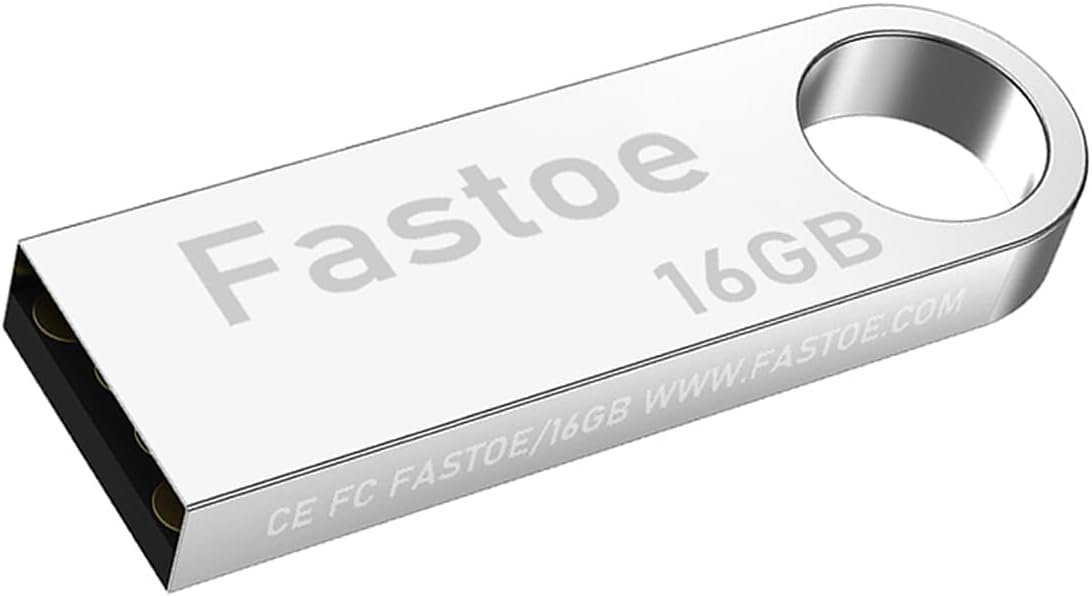
Bootable USB Flash Drive Installer for Windows 11 Pro/Home 64 Bit
16GB Storage Capacity
100% Clean Install
Plug and Play Ready
Online Support Included
This option emphasizes reliability and cleanliness offering a high quality USB drive with a verified virus free Windows 11 version. It is designed for users who prioritize simplicity and security over complex recovery toolsets.
Pros
High quality USB drive
100% clean install version
User guide included
Online technical support
Compatible with all brands
Cons
Limited features
Storage capacity may be low
We may earn a commission when you buy through this link, at no additional cost to you.
The plug and play nature of the drive means you can start the installation process quickly without needing to configure extensive settings. This makes it an ideal choice for quick OS reinstalls where speed is essential.
Compatibility is broad covering major PC brands like Dell HP and Lenovo. You can trust that it will work across different hardware configurations without requiring specific driver adjustments before booting.
For users who want a straightforward and safe installation experience this drive delivers effectively. The included online technical support ensures you can get help if you encounter unexpected issues.
Clean System Image
Deployed with the latest official original version of Windows 11 free from viruses and spyware.
Ease of Use
Includes user guide and online technical support services to help you get started quickly.
We may earn a commission when you buy through this link, at no additional cost to you.
Buying Guide – How to Choose the Best Bootable Windows 11 USB Drive
Selecting the right USB drive involves considering storage capacity, compatibility with your computer's BIOS type, and the specific tools you need for repair.
Storage Capacity
Storage capacity determines how many tools and system files you can keep on the drive. While 8GB or 16GB drives are sufficient for basic Windows installation media, larger drives like 32GB or 64GB offer space for recovery suites and additional drivers. If you plan to use the drive for data backups or extensive maintenance, opting for a higher capacity ensures you have room to grow.
Choose at least 32GB if you need to store extra recovery tools or drivers for network connectivity.
UEFI vs Legacy BIOS Support
Most modern computers use UEFI BIOS while older machines rely on Legacy BIOS. A drive that supports both modes provides maximum compatibility across different hardware generations. Ensure the product description explicitly states support for your system's boot method to avoid boot failures.
Always verify that the drive supports both UEFI and Legacy BIOS if you are unsure of your computer's age.
TPM Requirement Bypass
Windows 11 typically requires TPM hardware which many older PCs do not have. Some USB drives include tools to bypass this requirement allowing you to install Windows 11 on unsupported hardware. If you are upgrading an older machine, look for products that clearly state they do not require TPM for installation.
Check the product specifications for TPM bypass features if you are installing Windows 11 on older hardware.
Included Recovery Tools
Many drives come with WinPE suites that offer password resets, disk partitioning, and data recovery options. These tools are vital if your system fails to boot and you need to retrieve files before reinstalling. A drive with a comprehensive toolkit can save you the cost of professional data recovery services.
Prioritize drives that include password recovery and data backup utilities for a safer repair process.
Secure Boot Compatibility
Secure Boot is a security feature that prevents unauthorized operating systems from loading. Some drives require you to disable this setting in BIOS to boot which can be intimidating for beginners. Look for drives that explicitly state they work with Secure Boot enabled if you want to avoid changing system settings.
Select a drive that supports Secure Boot enabled if you prefer not to adjust BIOS security settings.
Network Driver Support
After reinstalling Windows, you may find your network card does not work without the correct drivers. Some USB drives include a collection of WiFi and LAN drivers to ensure you can connect to the internet immediately. This is crucial for running Windows updates and restoring system functionality quickly.
Ensure the drive includes network drivers so you can connect to the internet after installation.
Documentation and Support
Detailed instructions or video tutorials included with the drive can make the difference between a successful repair and a confusing experience. Look for products that provide clear guides on how to boot from the USB drive step by step. Good customer support can also help resolve any issues that arise during installation.
Look for drives with included video tutorials and clear printed instructions for easier setup.
System Requirements
Not all drives work with every type of computer. Some are specifically designed for 64-bit systems while others may support different architectures. Verify that the drive is compatible with your system's architecture and brand to prevent hardware incompatibility issues. Always check if it supports your specific PC brand for guaranteed functionality.
Confirm that the drive is compatible with your specific PC brand and system architecture before buying.
How to Use and Care for Your Bootable Windows 11 USB Drive
To use your bootable USB drive, insert it into a USB port on your computer and restart the machine. Enter the BIOS or boot menu by pressing the appropriate key such as F12 or Del depending on your system, and select the USB drive as the boot device.
Once the installation or recovery interface loads, follow the on-screen instructions to reinstall Windows or access repair tools. Be sure to save any important data before proceeding with a full system reinstall as this process will erase existing files on the hard drive.
For proper care, keep the USB drive in a protective case to prevent physical damage and avoid exposing it to extreme temperatures. Always safely eject the drive from your computer after use to prevent data corruption that could render the tool unusable in the future.
Frequently Asked Questions
Does a bootable USB drive require a Windows product key?
Most bootable USB drives do not include a product key for Windows activation. You will need to use your existing digital license or purchase a separate key to fully activate the operating system after installation. Some premium options may include a key but this is not standard for most products.
Can I install Windows 11 without a TPM chip using these drives?
Yes many of the bootable USB drives listed include tools that bypass the TPM requirement for Windows 11 installation. This allows you to install the OS on older hardware that does not meet the official TPM specifications. Always check the product details to confirm TPM bypass capabilities.
Will these USB drives work on both new and old computers?
Most drives support both UEFI and Legacy BIOS modes to ensure compatibility across different system generations. However some specialized drives may only support UEFI which limits them to newer computers. Check the compatibility specifications to ensure it fits your specific hardware age.
Do I need to disable Secure Boot to use these tools?
Some drives require you to disable Secure Boot in your BIOS settings while others are designed to work with it enabled. Disabling Secure Boot is a common step for third-party tools but newer options allow you to keep it active for security. Always read the setup instructions carefully.
Is my data safe when using a bootable USB drive?
Using a bootable USB drive for installation will typically erase data on the hard drive unless you choose a repair or restore option. It is highly recommended to back up your important files before attempting any system changes. Some drives include tools specifically for data recovery before reinstall.
Are these USB drives safe from viruses?
Reputable products are scanned for viruses and malware before being sold to ensure they are safe to use. Always download or install from trusted sources and verify the antivirus status mentioned in the product description. This practice ensures your system remains protected during the repair process.
Can I use these USB drives for data recovery?
Many of the drives include utilities that allow you to access hard drives and recover data before reinstalling Windows. This feature is crucial if your system is crashing and you need to save important files. Look for models that explicitly mention data backup or recovery tools.
What happens if my computer cannot enter the BIOS?
If your computer cannot power on or enter the BIOS menu a USB drive will not be able to fix the issue. These tools are designed for software recovery rather than hardware repair. You should verify that your computer can at least power on and access the BIOS before purchasing.
Final Thoughts on Choosing the Best Bootable Windows 11 USB Drive
We reviewed ten highly rated USB drives ranging from basic installers to comprehensive repair suites. The top picks offer a balance of compatibility, tool availability, and ease of use for users with different technical skill levels.
When choosing the right drive prioritize features like TPM bypass and network driver support if you are upgrading older hardware. Consider whether you need extra recovery utilities or a simple installation tool based on your specific repair needs.
Always check the current prices and compatibility details before purchasing to ensure the drive fits your system and budget. Prices may fluctuate so verifying availability guarantees you get the correct product for your repair task.
Compare the top 10 colorimeters for monitor calibration to find the best device for accurate screen color across photo editing, video grading, and creative
This guide compares the top conference cameras for Microsoft Teams based on video quality, audio clarity, room coverage, and integration features for hybrid